< Step-by-Step Guide: Cloud Honeypot Setup with Azure Sentinel>
Introduction
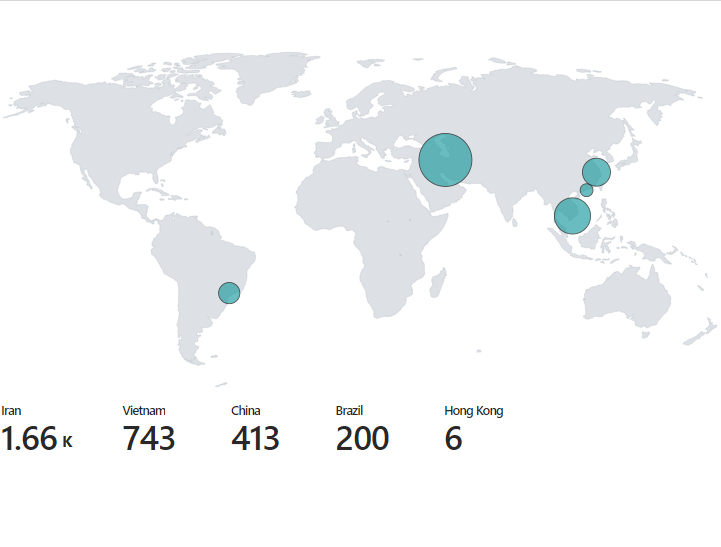
I set up a deliberately vulnerable VM in Azure, exposed it to the internet, and watched the attacks roll in. Then I used Azure Sentinel to map where the attackers were coming from.
The whole point was to see what happens when you expose a machine with no protection. Spoiler: it gets hammered almost immediately. Within minutes of running the PowerShell script, brute-force RDP attempts started flooding in from around the world.
This guide walks through exactly how I built it. If you want to replicate it, you can, just keep Azure costs in mind and do not leave it running longer than necessary.
1. Setting Up the Virtual Machine
To begin, log into the Azure portal to create a new virtual machine.
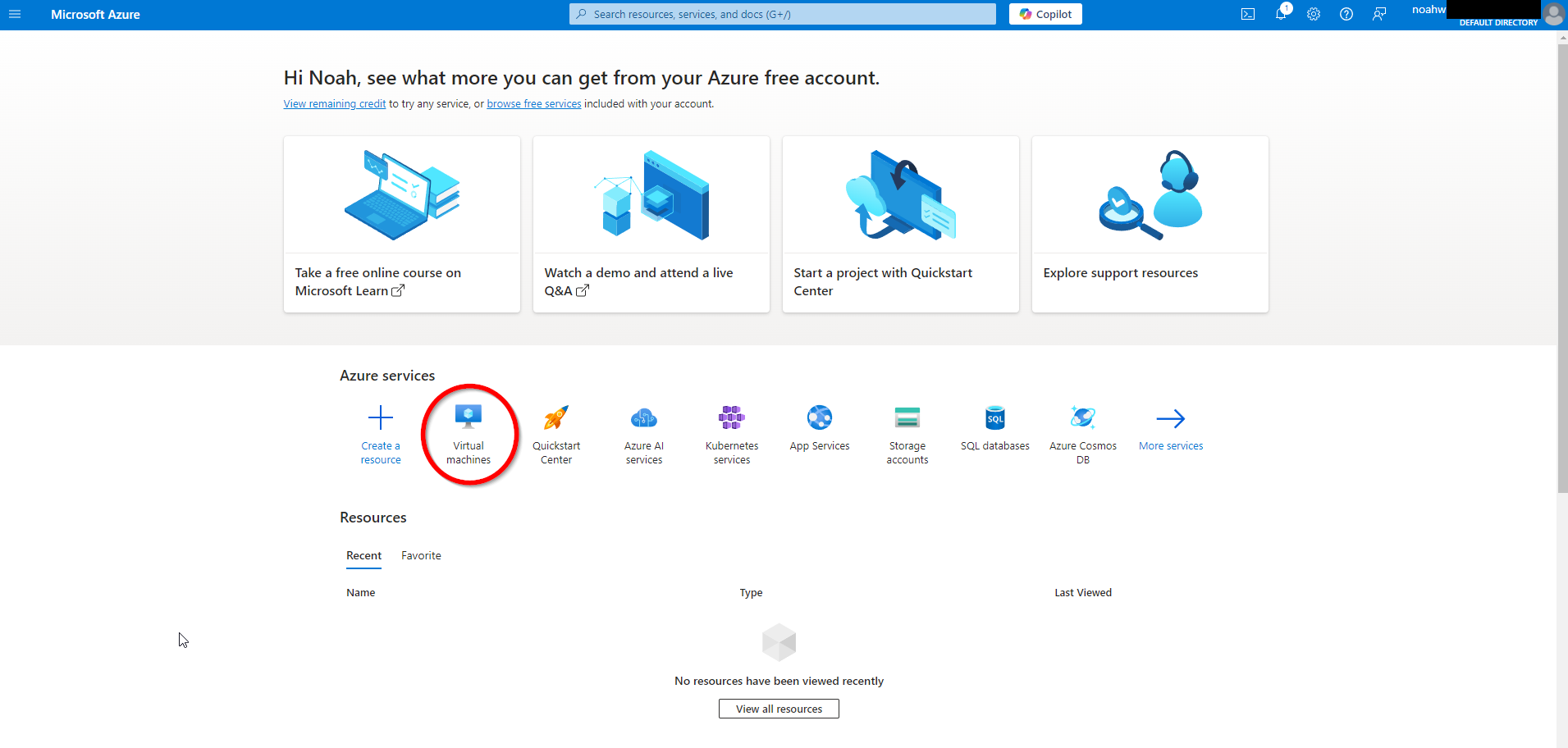
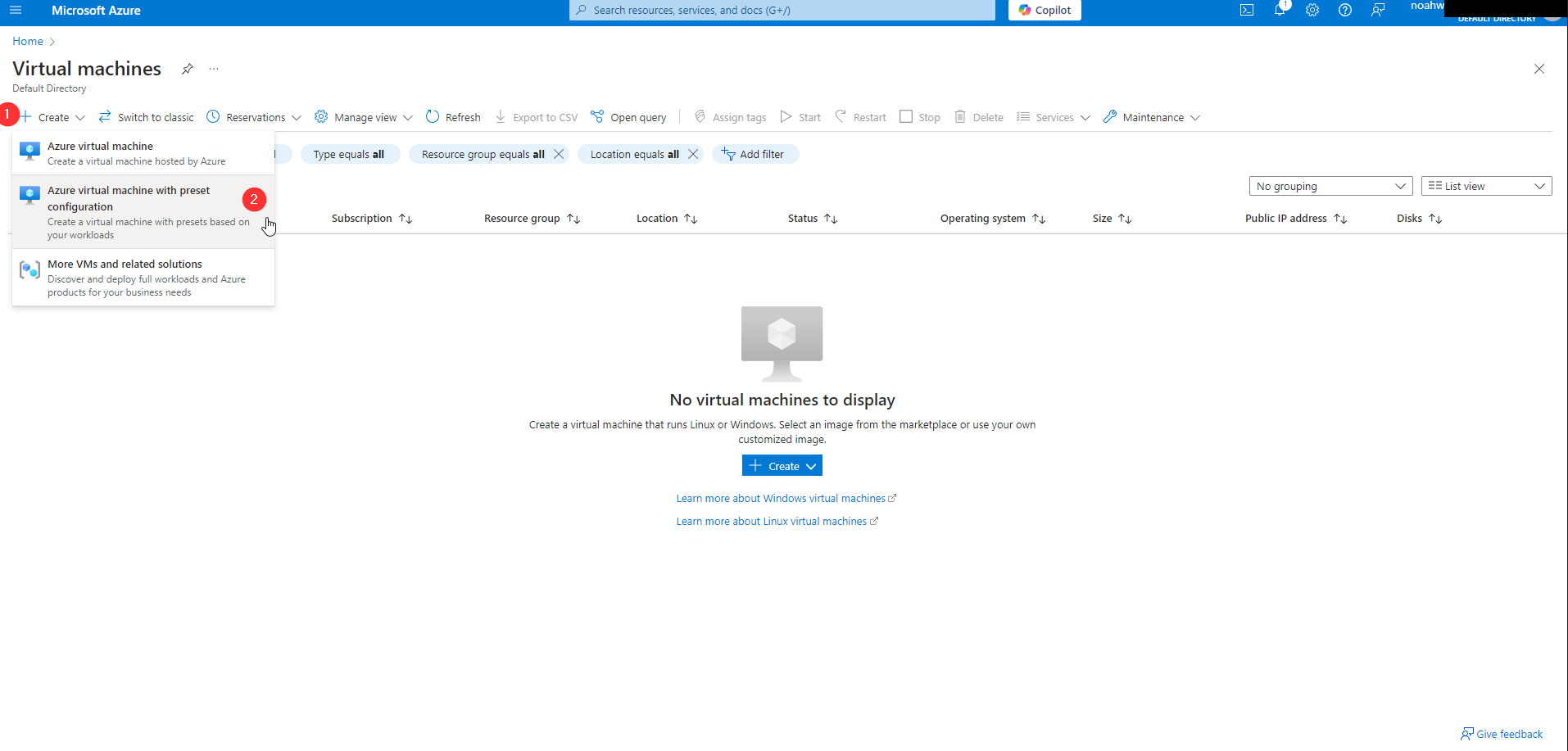
Step 1: Navigate to Virtual Machines in the Azure portal and click on Create.
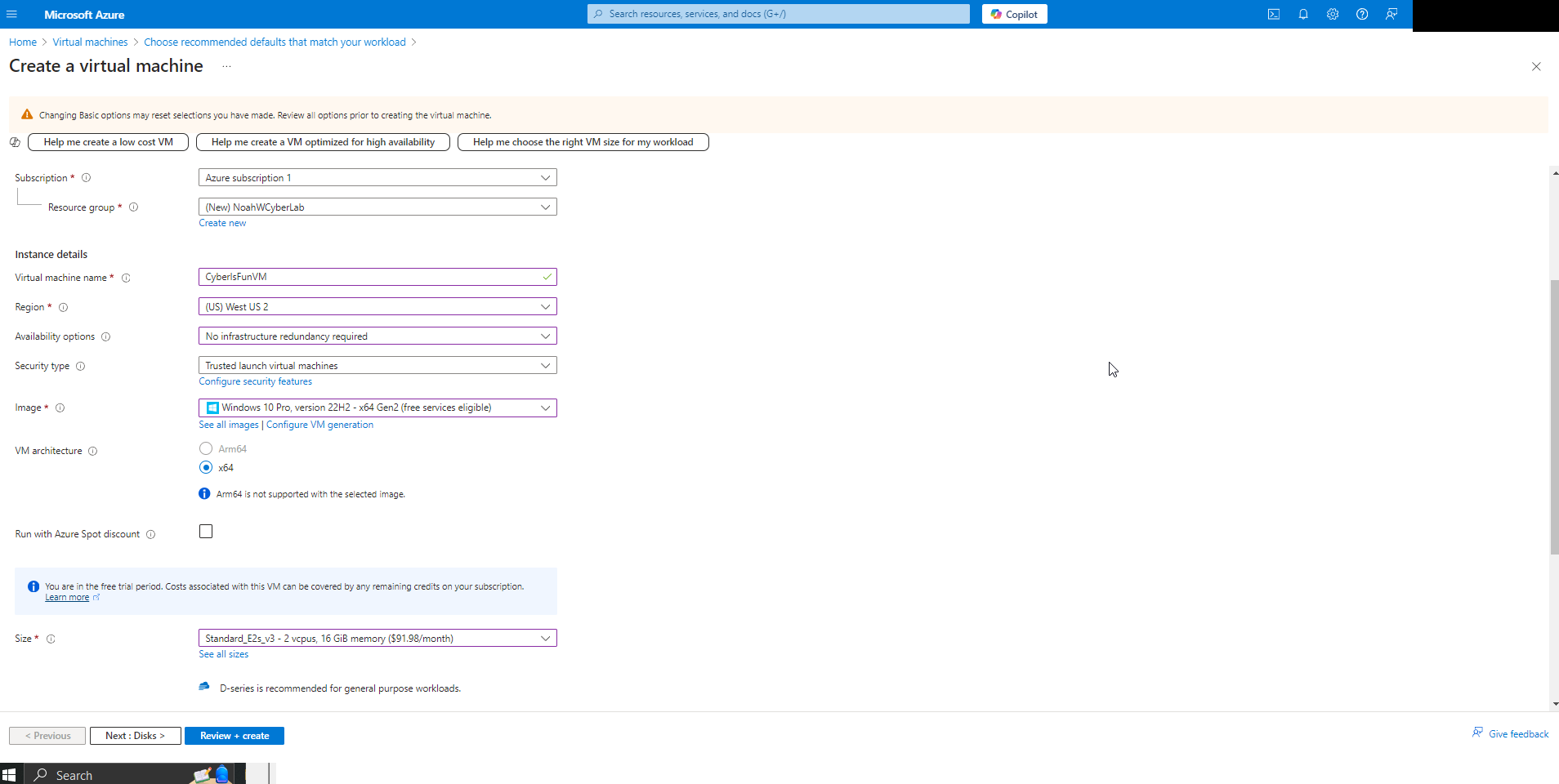
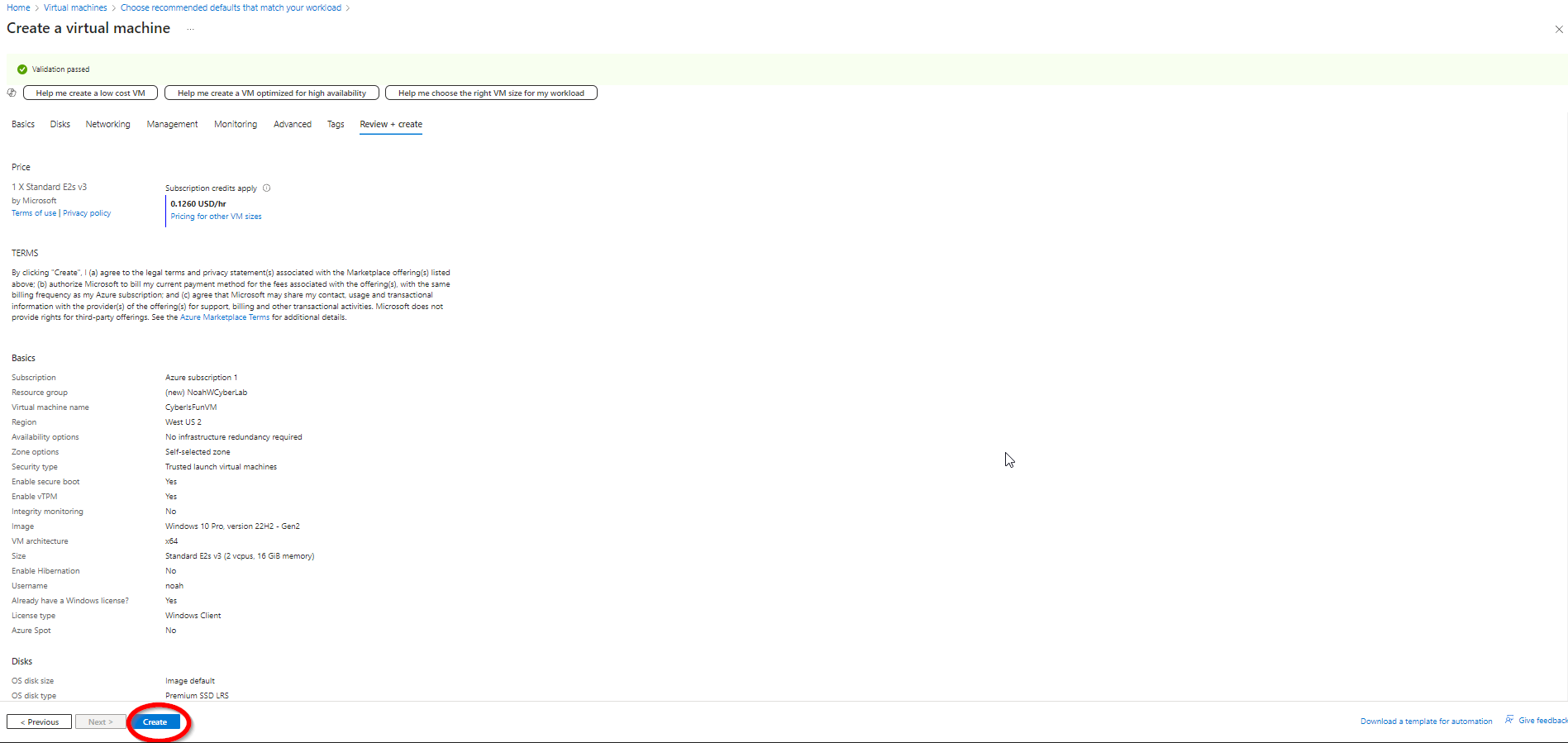
Step 2: Configure the virtual machine settings:
Resource Group: Create a new resource group named NoahWCyberLab.
Virtual Machine Name: Name the VM CyberIsFunVM.
Image: Select Windows 10 Pro (eligible for free trial).
Availability Options: Choose No redundancy due to trial limitations.
Important: Choose a long, complex password for this VM, as you are opening it up to a lot of attackers.
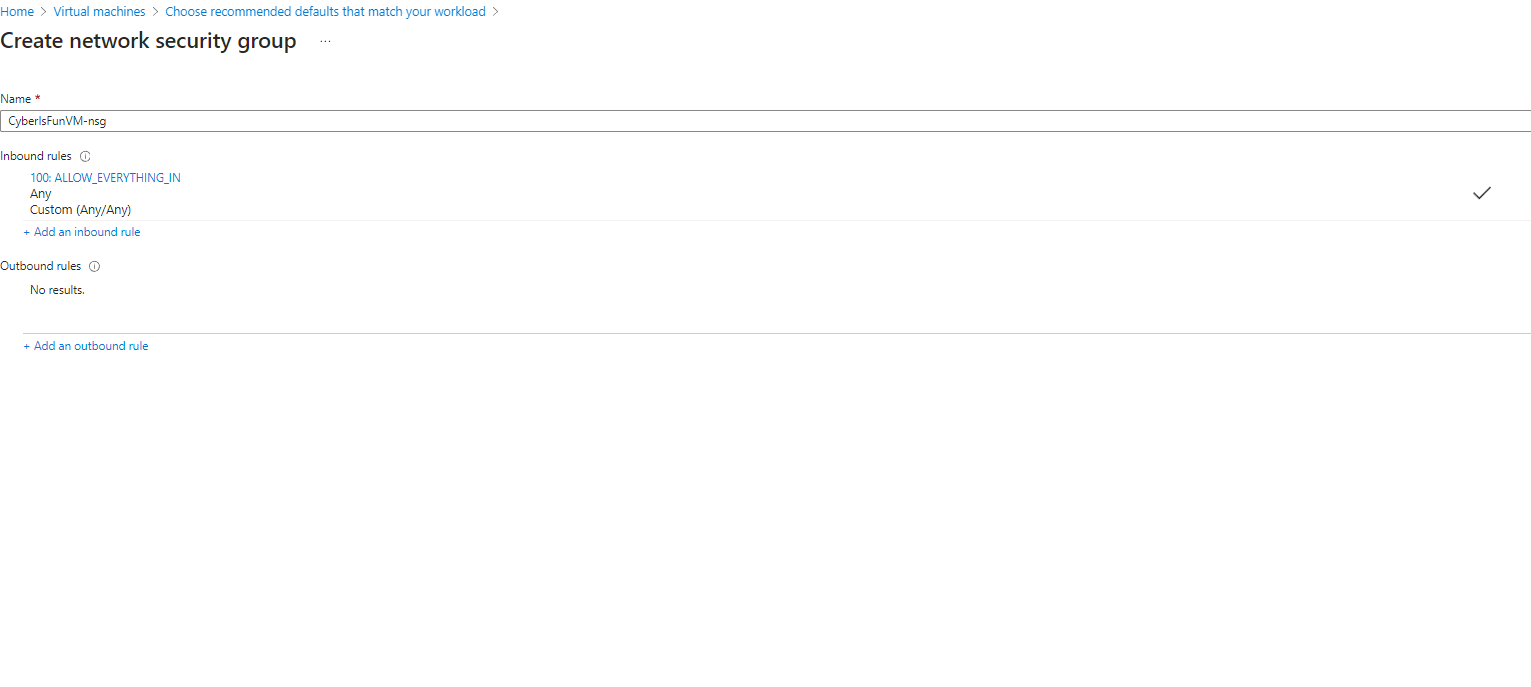
Step 3: Configure the networking settings.
Security Note: I intentionally set a permissive firewall rule to attract more attack attempts to the honeypot for analysis purposes. In a real-world scenario, such settings are not recommended.
Step 4: Review and create the virtual machine.
2. Creating a Log Analytics Workspace
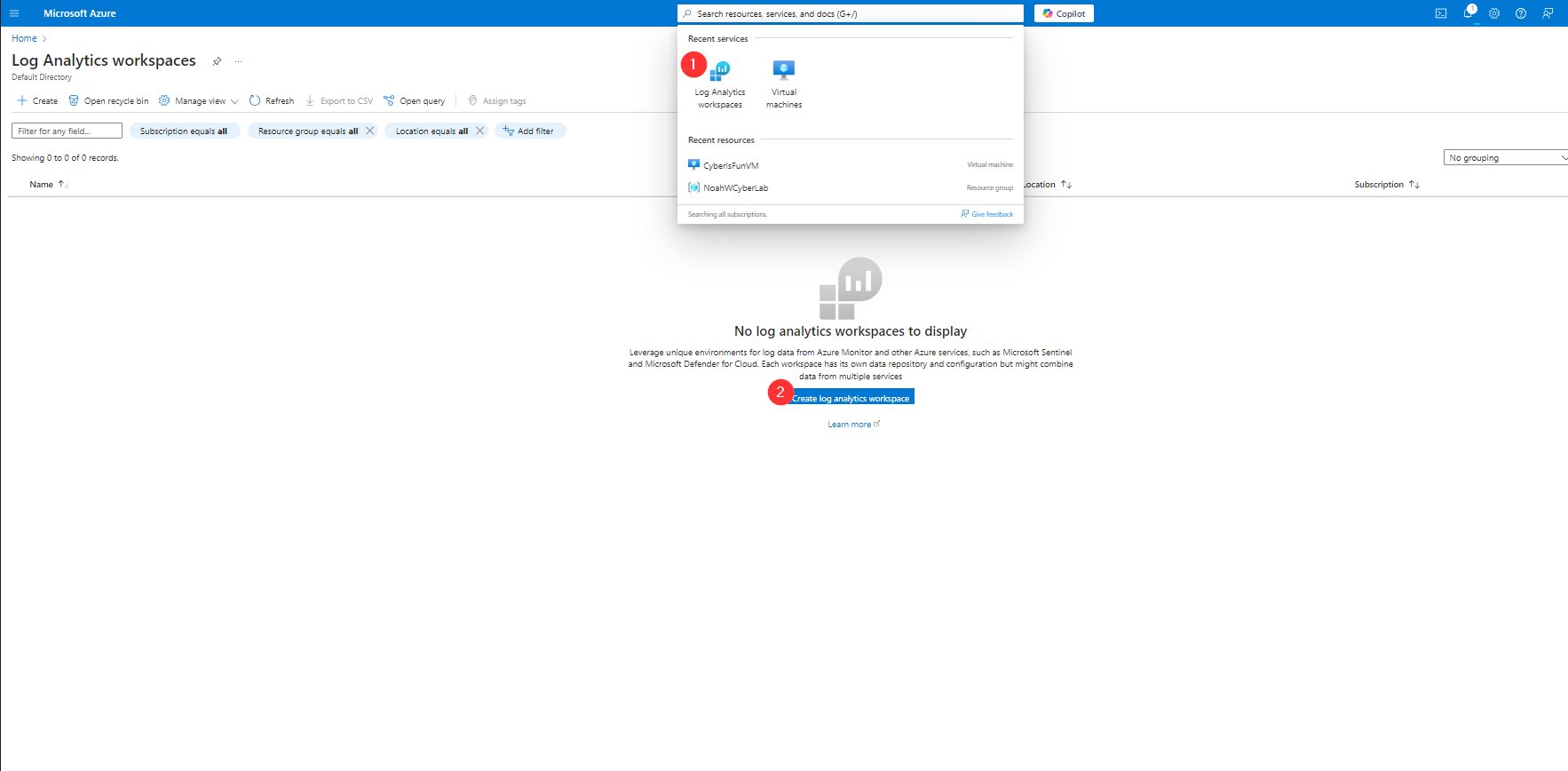
Next, set up a Log Analytics Workspace to collect and analyze logs from the VM.
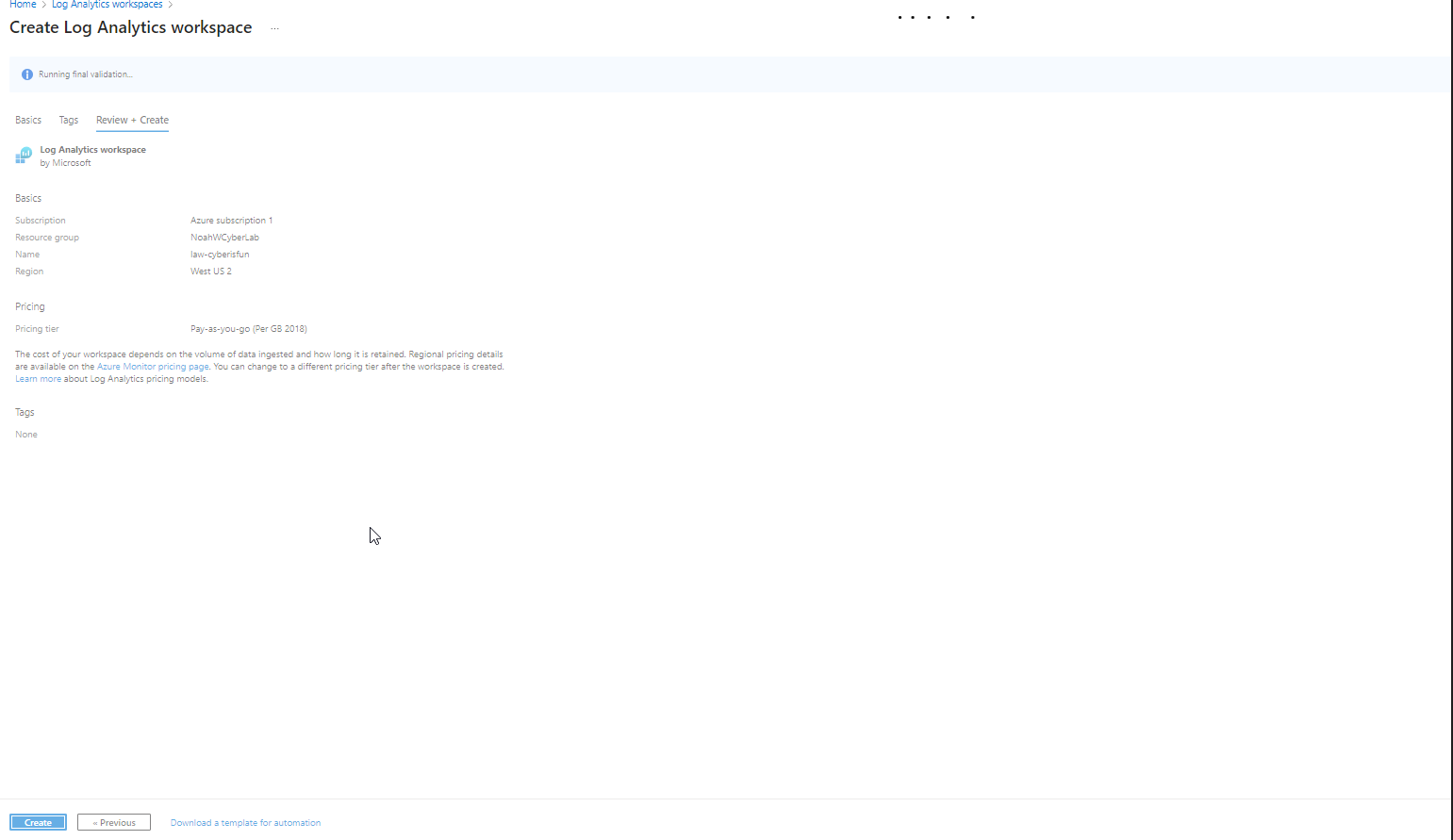
Step 1: Create a new Log Analytics Workspace named law-cyberisfun in the NoahWCyberLab resource group
3. Configuring Microsoft Defender and Data Collection
Enhance security and enable data collection by configuring Microsoft Defender for Cloud.
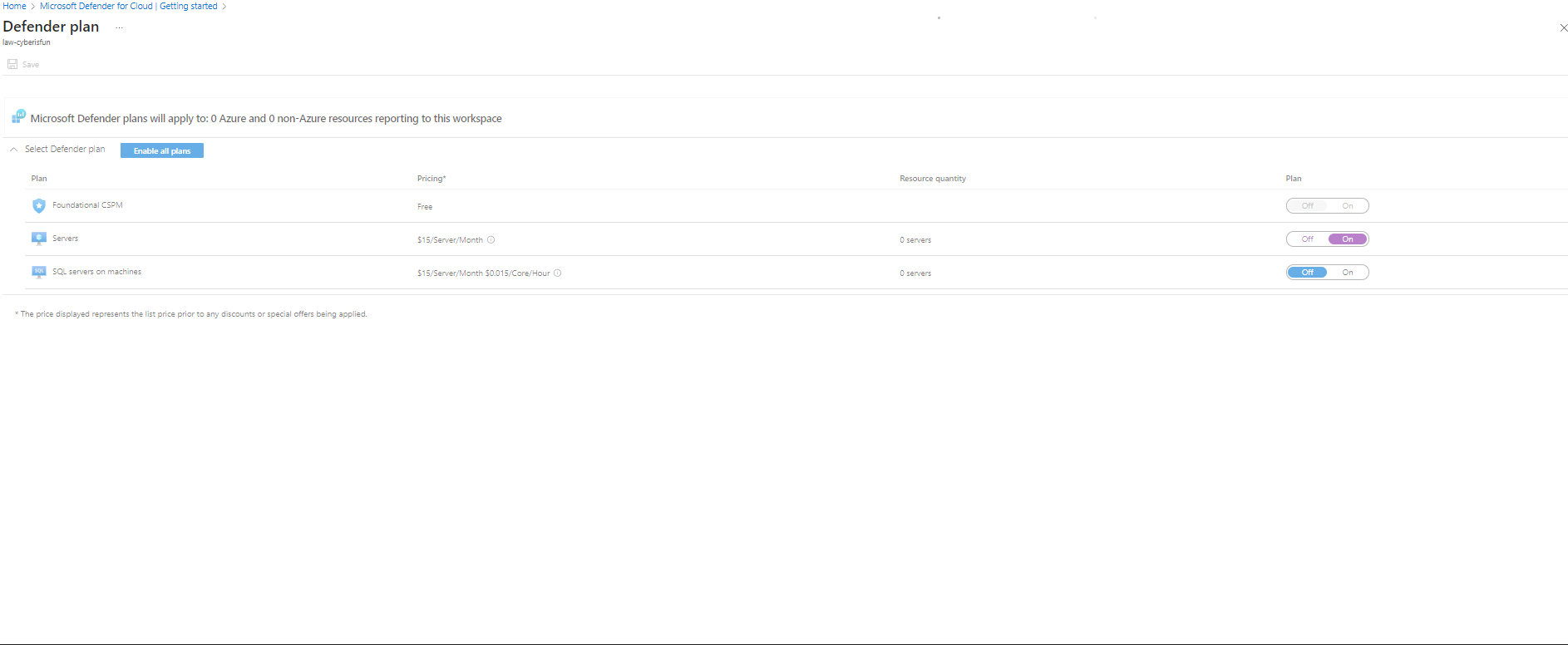
Step 1: Enable the Servers plan in Microsoft Defender for Cloud. Disable other unnecessary plans to focus on the VM.
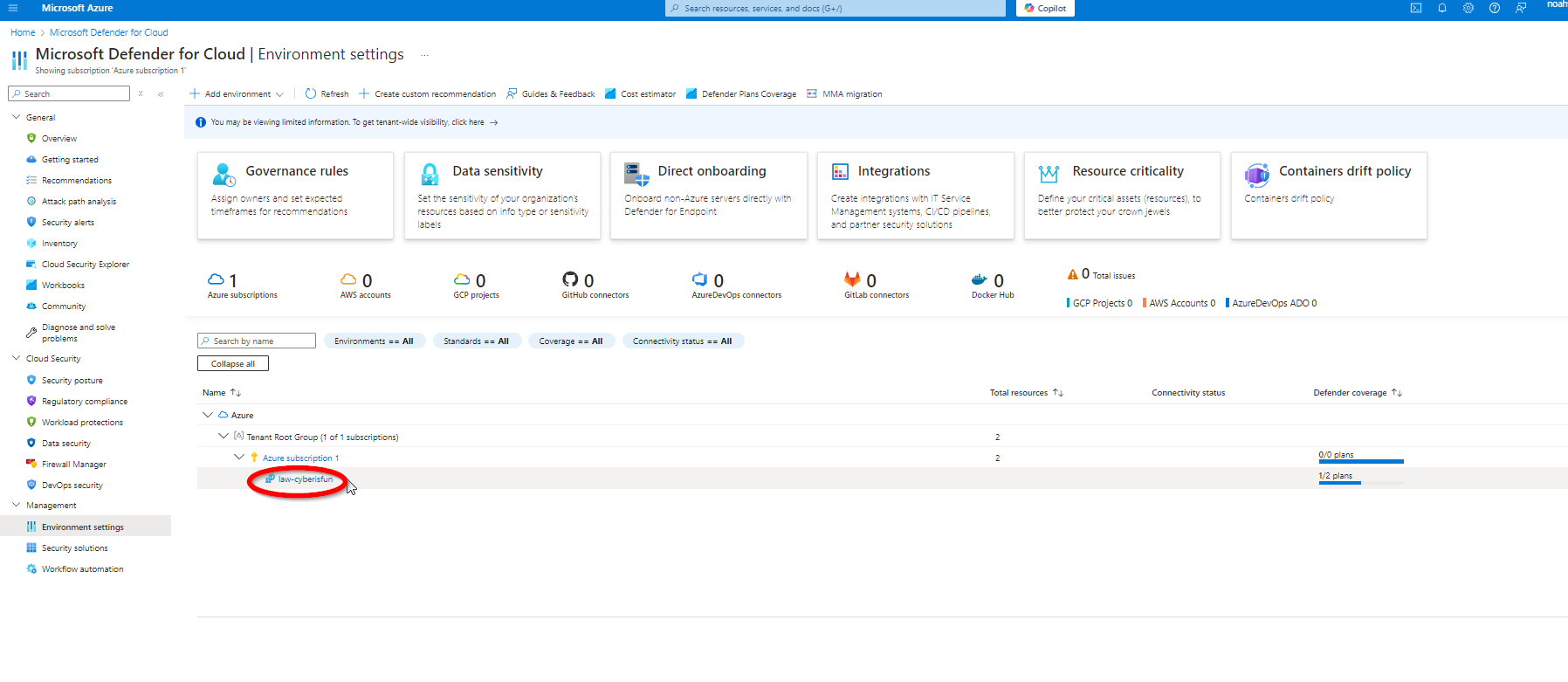
Step 2: Navigate to Environment Settings and select law-cyberisfun.
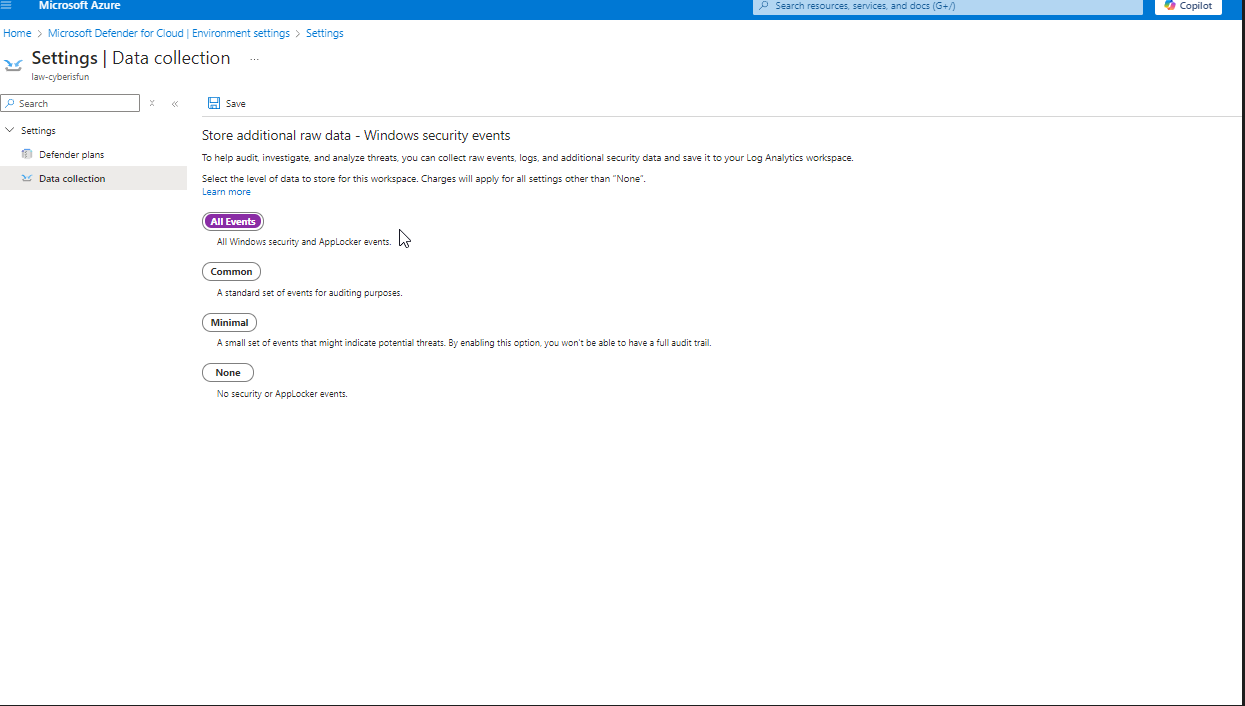
Step 3: Under Settings | Data Collection, enable the collection of All Events.
Note: Connect CyberIsFunVM to the Log Analytics Workspace. While this method is deprecated, it serves as a valuable learning experience.
4. Adding Microsoft Sentinel
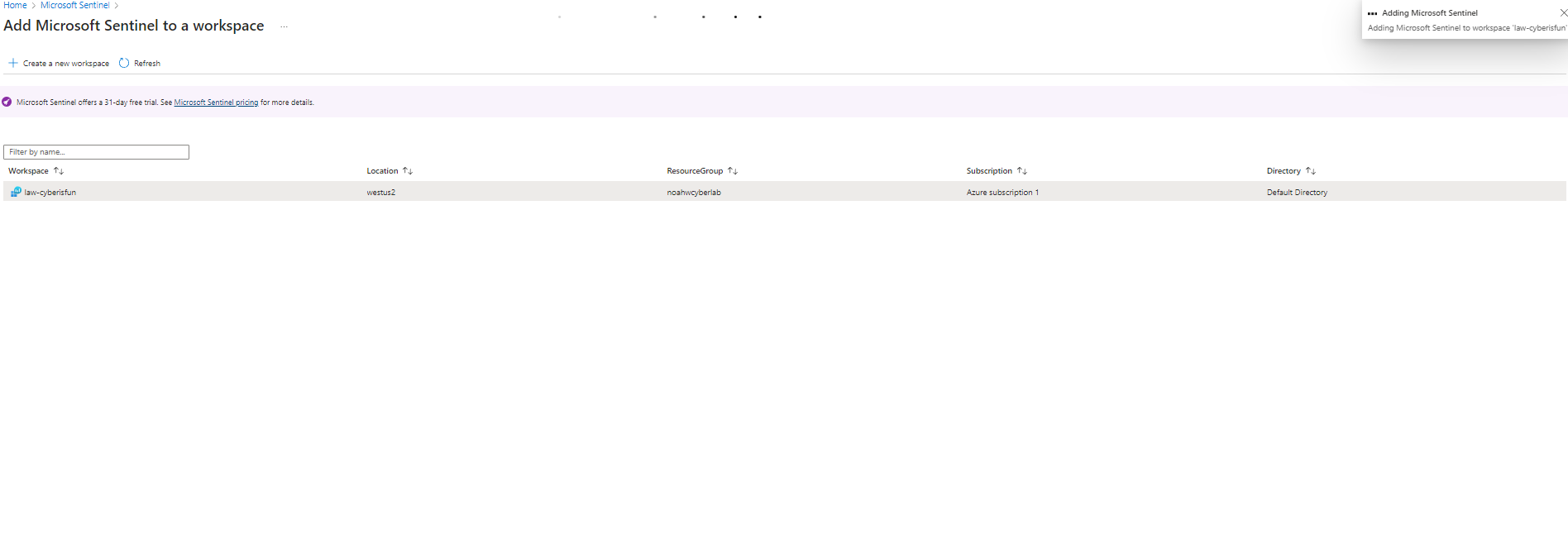
Add Microsoft Sentinel to the workspace for advanced threat detection and analysis.
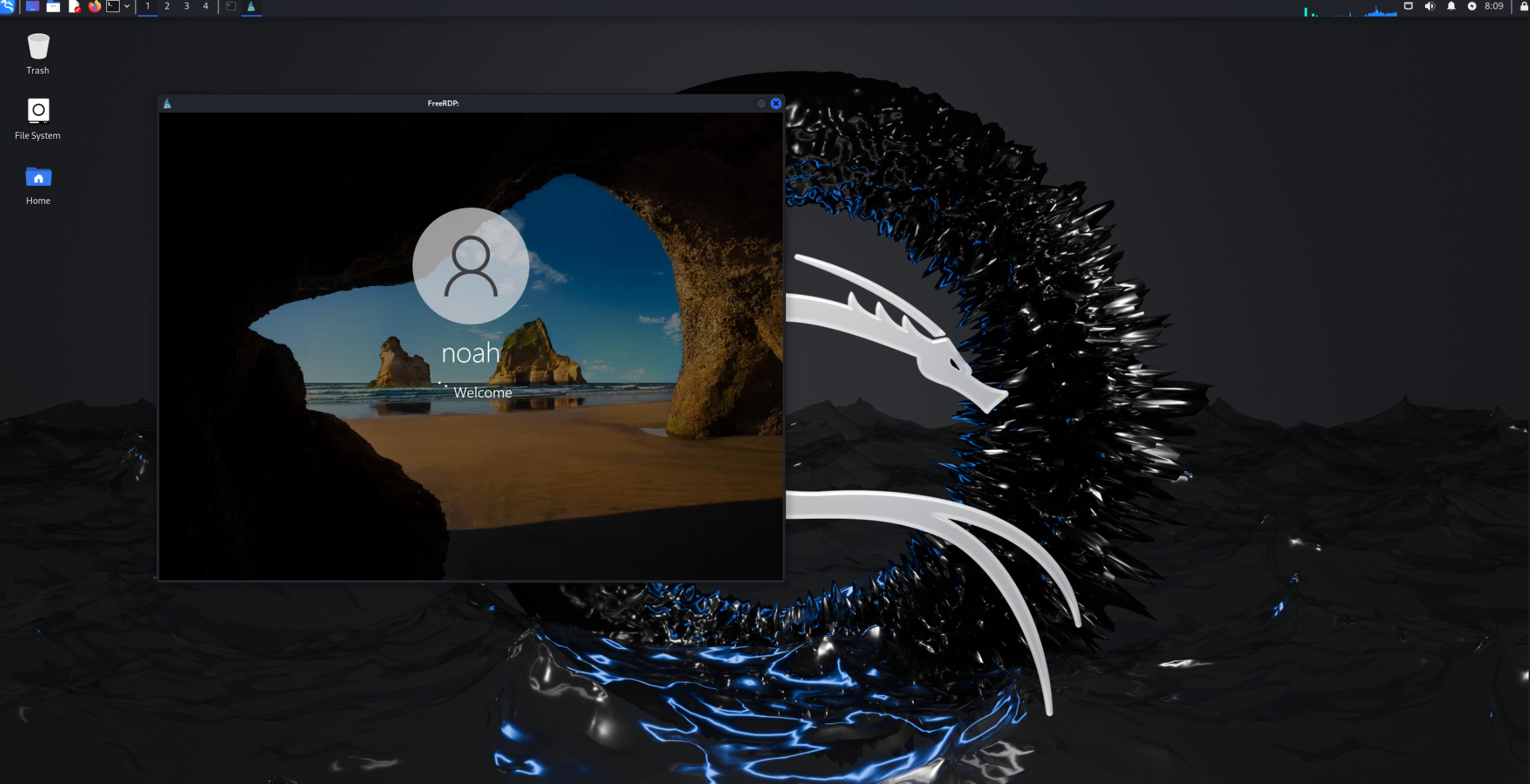
5. Accessing the Virtual Machine via RDP
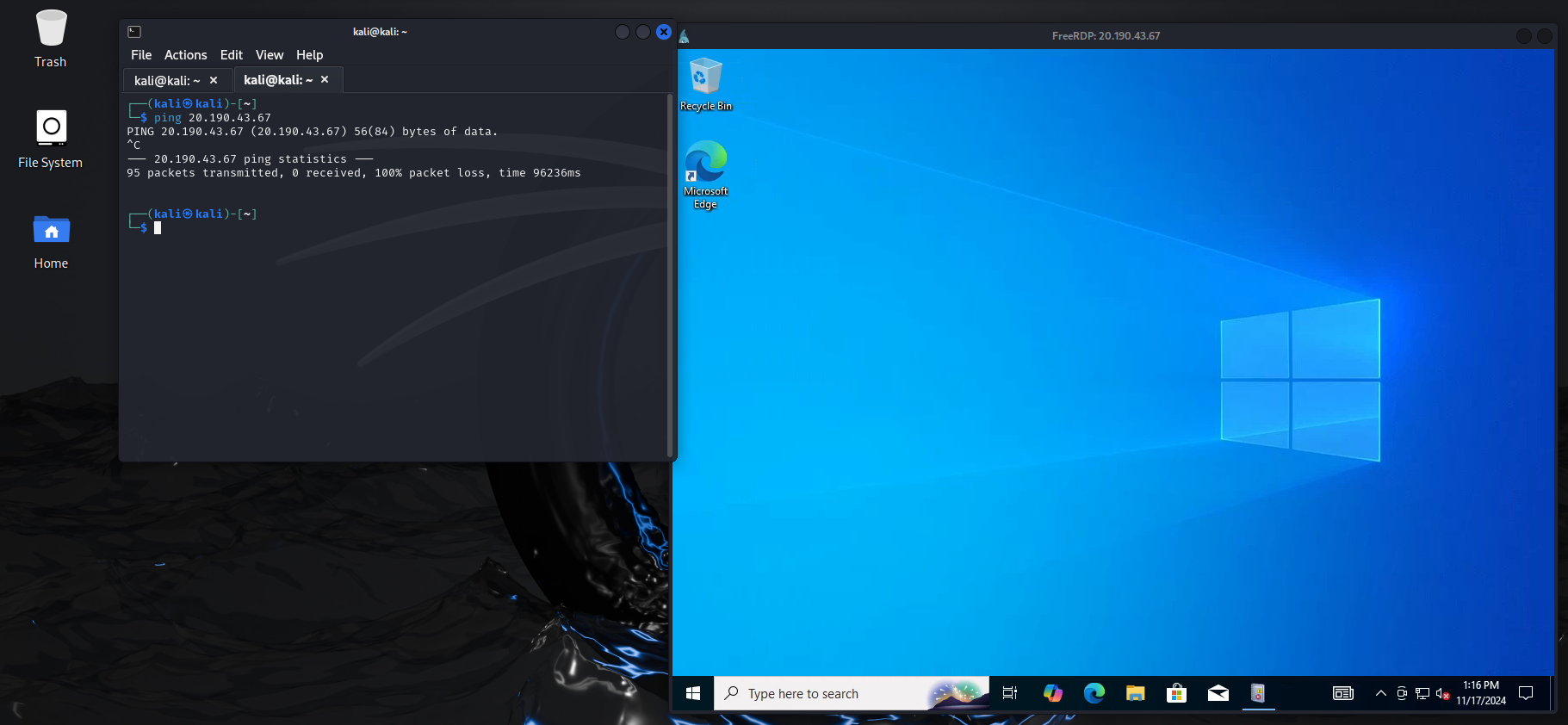
Access the VM using RDP from a Kali Linux machine.
Step 1: Install xfreerdp on Kali Linux:
sudo apt update
sudo apt install freerdp2-x11
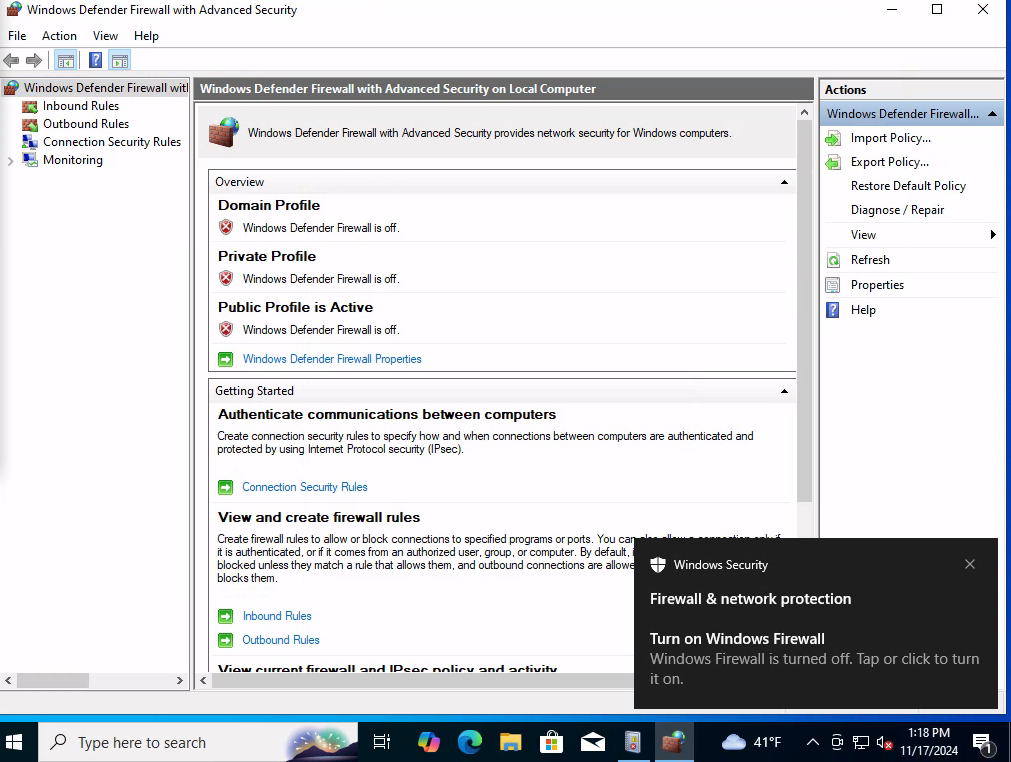
Note: If you cannot ping the VM, it may be due to the Windows Firewall blocking ICMP requests.
Step 2: Disable the Windows Firewall on the VM to allow ICMP ping requests.
Security Note: Disabling the firewall is generally not recommended. This step is solely for experimental purposes to increase visibility of incoming connections.
6. Setting Up the PowerShell Script for Geolocation
Use a PowerShell script to log failed RDP login attempts and map them to geographical locations.
Step 1: Obtain an API key from ipgeolocation.io by creating a free account.
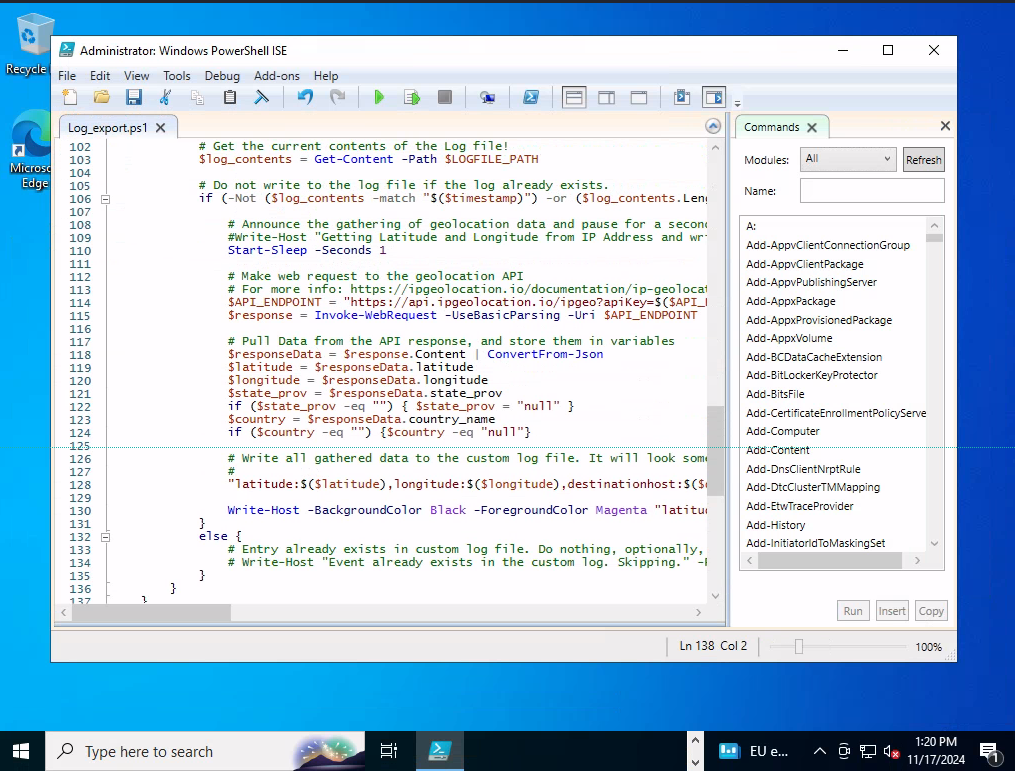
Step 2: Insert the API key into the PowerShell script. The script can be obtained from a GitHub repository or generated using ChatGPT (If you can’t code).
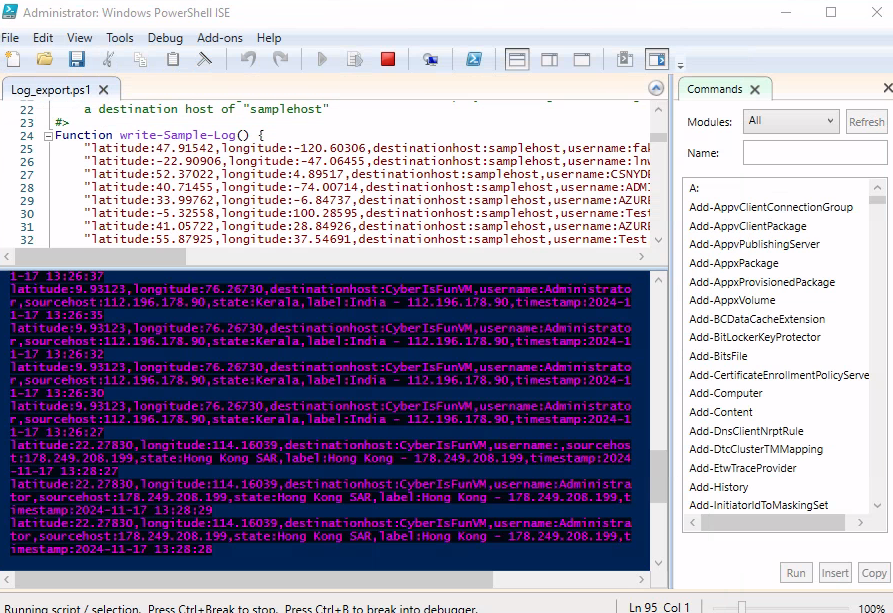
Script Functionality: The script monitors failed RDP login attempts, retrieves geolocation data based on the source IP address, and logs the information to a file named failed_rdp.log in the C:\ProgramData directory.
Immediately you can see brute force attacks upon clicking “run script”.
7. Creating a Custom Log in Log Analytics Workspace
Ingest the custom logs into Azure Sentinel by creating a custom log in the Log Analytics Workspace.
Step 1: Go to Tables in the Log Analytics Workspace and click Create Custom Log (MMA-based).
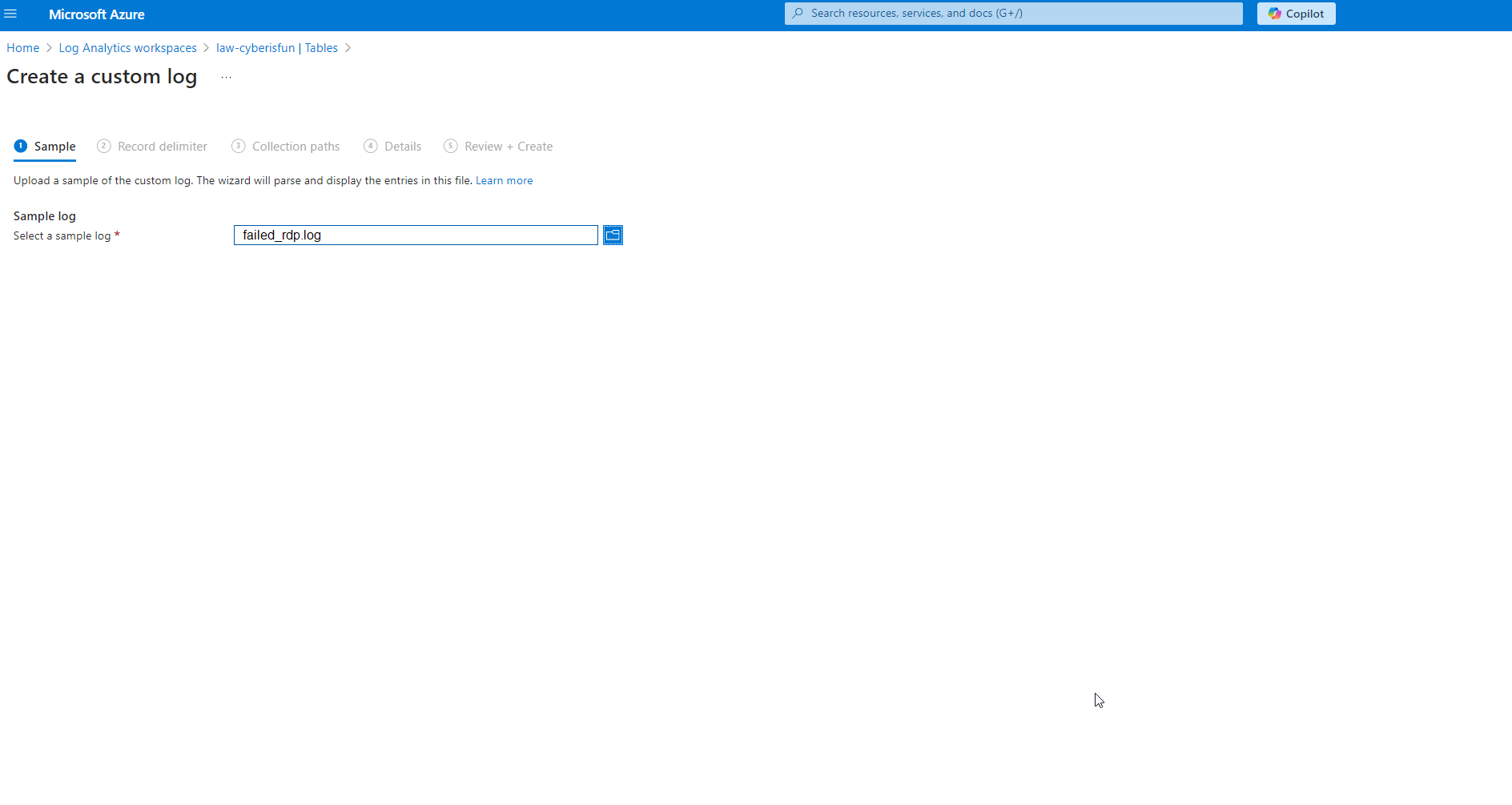
Step 2: Provide sample log data by copying entries from the PowerShell script output into a file named failed_rdp.log.
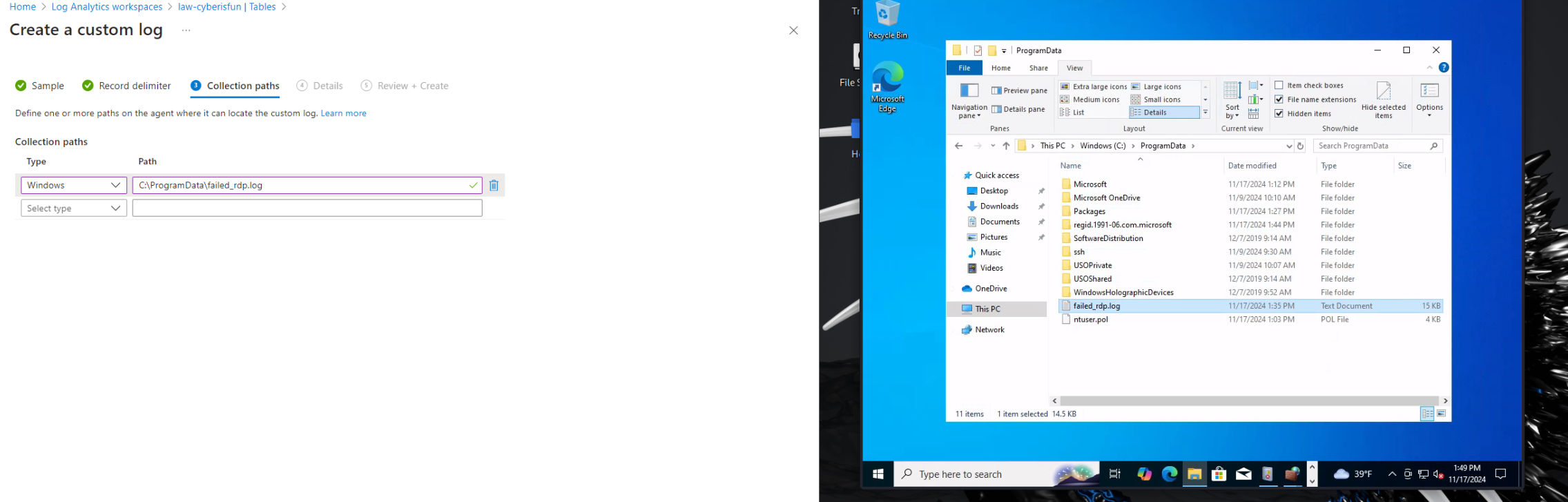
Step 3: Set the collection path to C:\ProgramData\failed_rdp.log.
Step 4: Name the custom log. I named mine “FAILED_RDP_LOG_CL”.
Note: You may need to show hidden files in File Explorer to see C:\ProgramData.
8. Querying the Logs with KQL
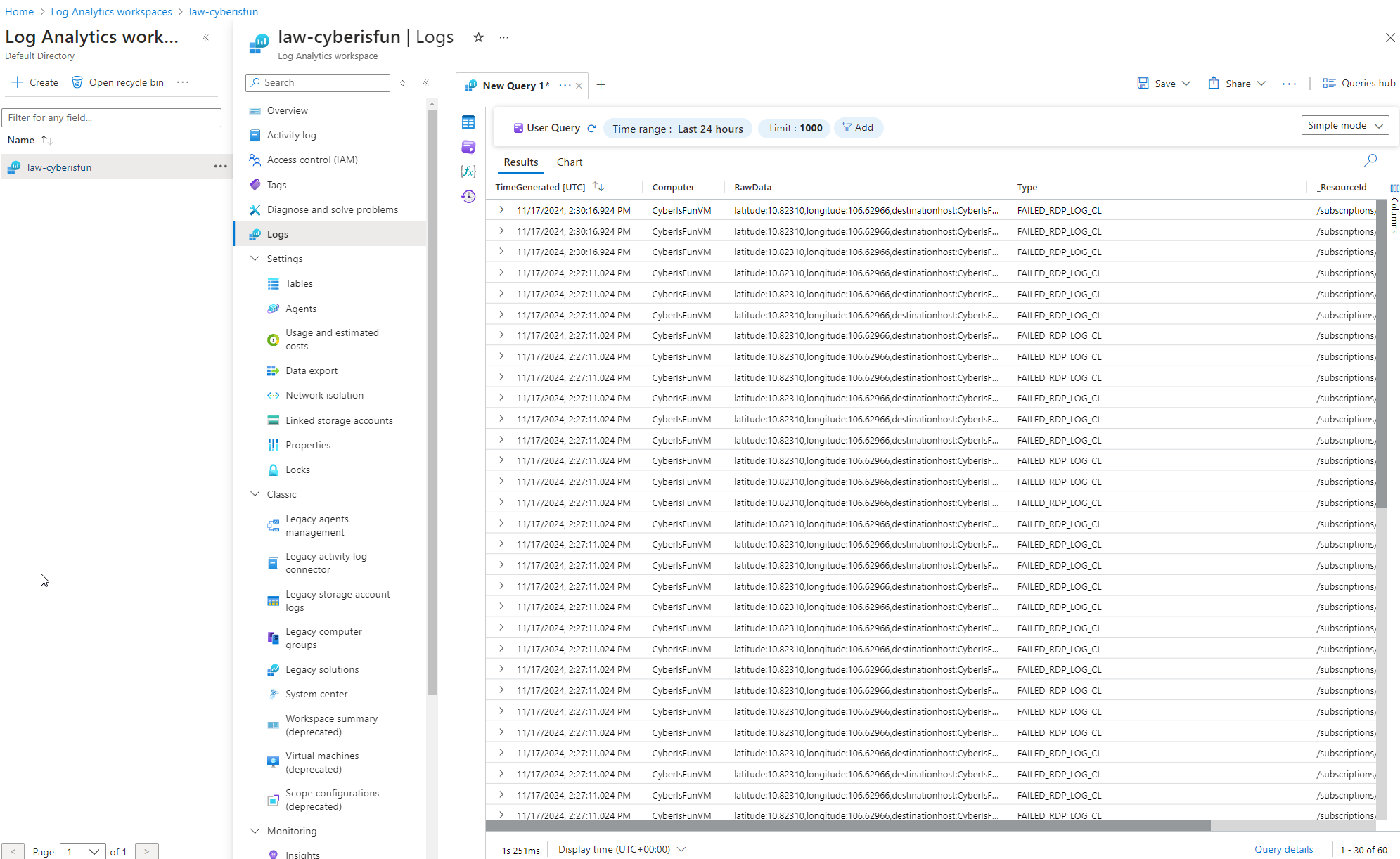
After data ingestion, use Kusto Query Language (KQL) to query the logs.
Step 1: Run an initial query:
FAILED_RDP_LOG_CL
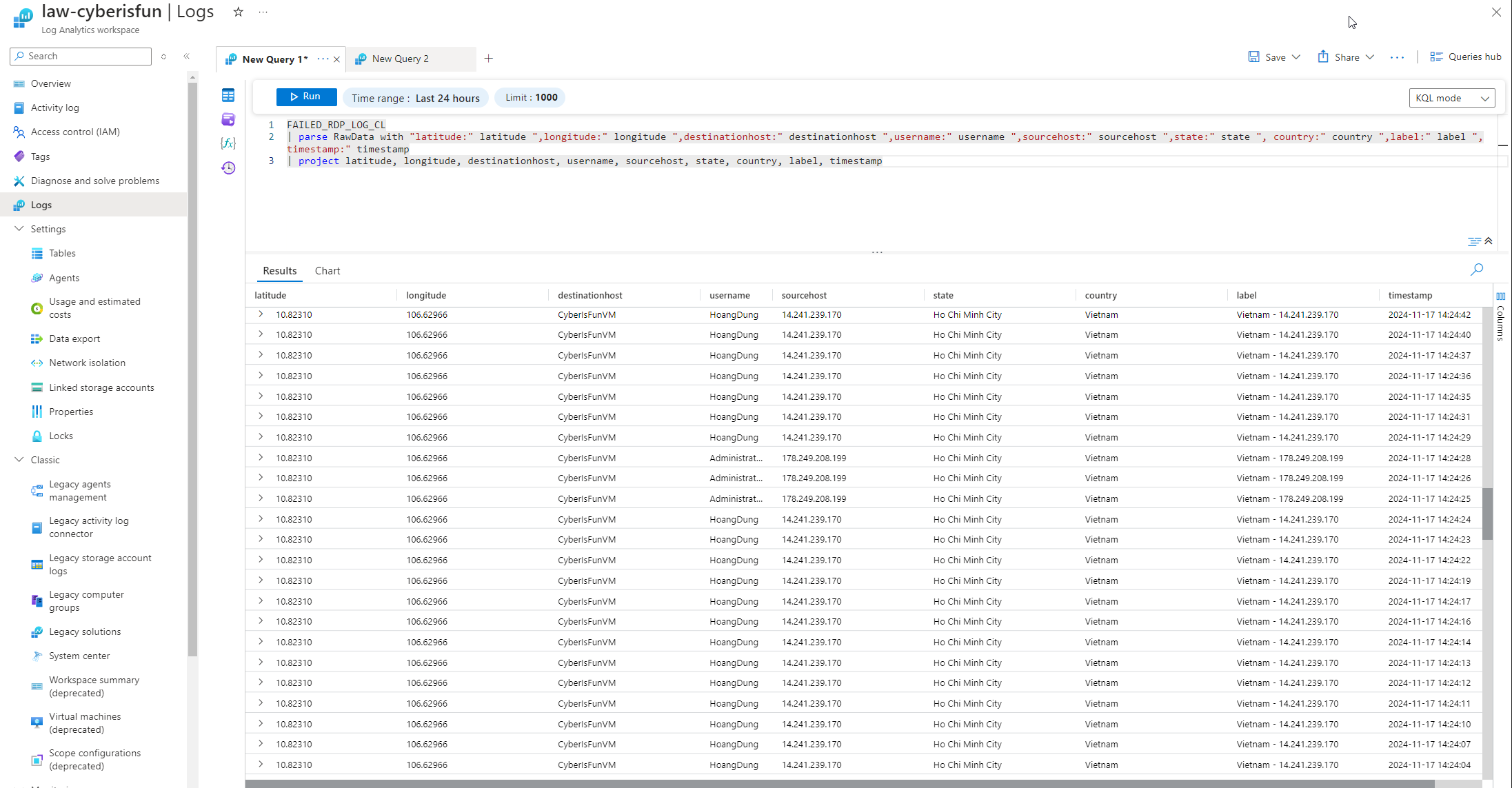
Observation: The output is unstructured and difficult to read.
Step 2: Use the parse function to structure the data:
FAILED_RDP_LOG_CL
| parse RawData with “latitude:” latitude “,longitude:” longitude “,destinationhost:” destinationhost “,username:” username “,sourcehost:” sourcehost “,state:” state “,country:” country “,label:” label “,timestamp:” timestamp
| project latitude, longitude, destinationhost, username, sourcehost, state, country, label, timestamp
Note: If you don’t know the syntax, you can easily tweak the syntax and output by using the built in Azure Copilot or with ChatGPT.
9. Visualizing Data with a Workbook
Create a workbook in Microsoft Sentinel to visualize the data on a map.
Step 1: Delete the preset widgets to start fresh.
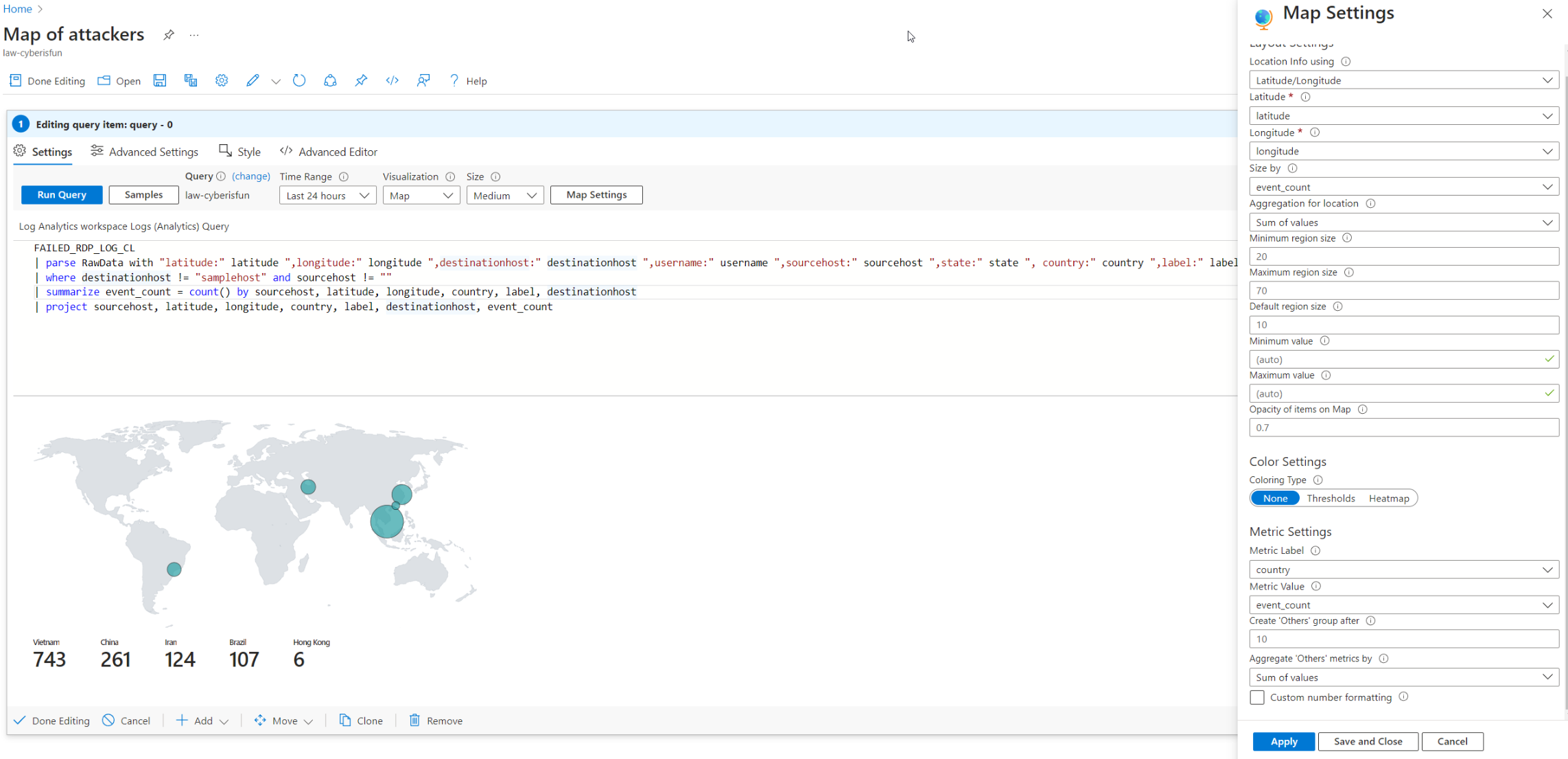
Step 2: Use the following query:
FAILED_RDP_LOG_CL
| parse RawData with “latitude:” latitude “,longitude:” longitude “,destinationhost:” destinationhost “,username:” username “,sourcehost:” sourcehost “,state:” state “,country:” country “,label:” label “,timestamp:” timestamp
| where destinationhost != “samplehost” and sourcehost != “”
| summarize event_count = count() by sourcehost, latitude, longitude, country, label, destinationhost
| project sourcehost, latitude, longitude, country, label, destinationhost, event_count
Step 3: Configure the map visualization accordingly.
Result: A comprehensive map showing the countries of the attackers and the number of events from each location.
10. Clean-Up and Cost Management
To avoid unnecessary charges, clean up all resources after completing the project.
Step: Delete all virtual machines, resource groups, Log Analytics Workspaces, and associated services.

11. Conclusion
That’s it. You’ve got a working honeypot that shows exactly where attacks are coming from and how quickly they start.
What I took away from this is that the speed of automated attacks is genuinely surprising. This VM had no value, no data, and no real purpose, yet it was getting hit within minutes of being exposed. That’s the reality of putting anything internet-facing online without proper security controls.
If you build this yourself, delete everything when you’re done. Azure charges add up fast if you forget, and you do not want a wide-open honeypot running indefinitely in your account.
That’s it. You’ve got a working honeypot that shows exactly where attacks are coming from and how quickly they start.
What I took away from this is that the speed of automated attacks is genuinely surprising. This VM had no value, no data, and no real purpose, yet it was getting hit within minutes of being exposed. That’s the reality of putting anything internet-facing online without proper security controls.
If you build this yourself, delete everything when you’re done. Azure charges add up fast if you forget, and you do not want a wide-open honeypot running indefinitely in your account.
Acknowledgments
A huge thank you to Josh Madakor for this project idea and for providing a comprehensive guide for setting it up. Note that his version is 3 years old, and some of the things he used are now deprecated. This is my updated version. You can check out his original video here: Josh Madakor’s Honeypot Video.
From CPTS to OSCP+: Using the…
From CPTS to OSCP+: Using the Sword to Slay the Dragon From CPTS to OSCP+: Using the Sword to Slay the Dragon So I passed the OSCP+ WOOHOO!!!. Now it’s time for me to help…
Penetration Testing Writeup: “Active” (Retired Machine…
Executive Summary This report summarizes a penetration test conducted against a Windows Active Directory environment. The testing identified critical vulnerabilities including the storage of administrative credentials in Group Policy Preferences (GPP) and weak password policies,…
My Methodology for Passing Any Certification…
My Methodology for Passing Any Certification in Under 2 Months Hello! I wanted to share my methodology for earning certifications and learning efficiently without sacrificing quality. Over the years, I’ve developed a system that helps…